 Nox-Lumen Mfg
Session UI and input box
This page explains what every part of the workspace does. Three main areas: left message stream, right content editor, bottom ChatInput.
Screenshot placeholders: wherever
![XXX]()appears, add images per the descriptions.
1. Overall layout
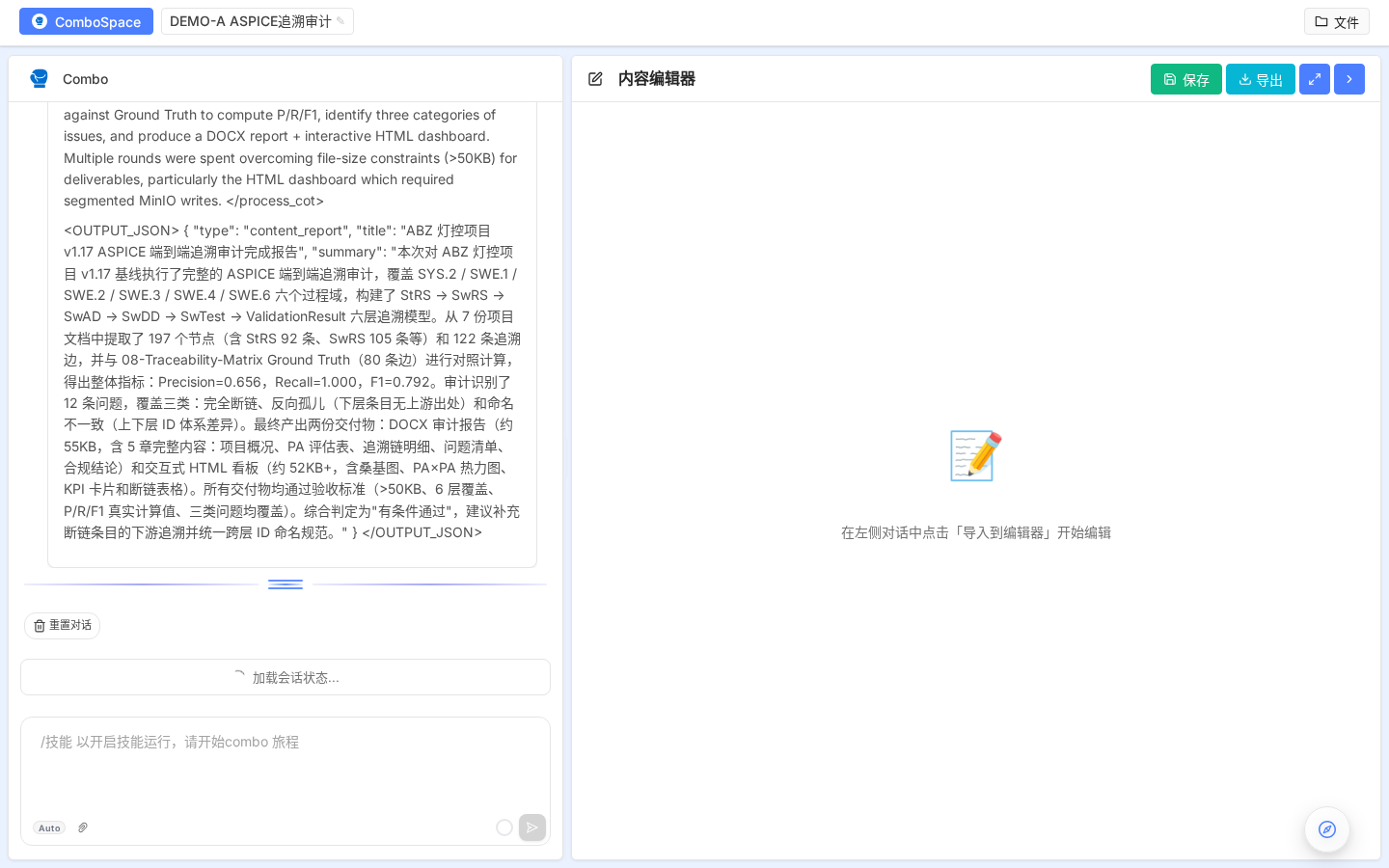
| Area | Role | Typical actions |
|---|---|---|
| Session list (far left) | Switch sessions, create, rename, archive, share | Click to switch; context / hover menu |
| Message stream (left main) | Timeline of user / Agent / tools / reasoning | Expand chain, open citations in editor |
| Content editor (right main) | Session deliverables | Edit Docx / Markdown; selection AI |
| ChatInput (bottom) | Ask / instruct / attach | Text + @ / / + upload + send |
The editor and message stream sync both ways: clicking a tool result or citation scrolls the editor; selecting text for AI edit posts a new turn in the stream.
2. ChatInput in detail
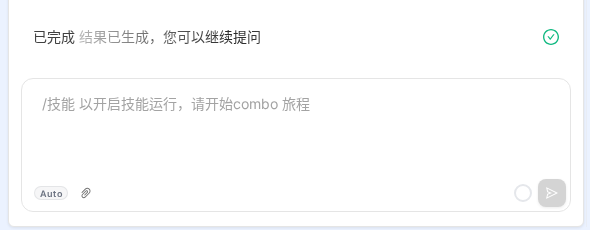
2.1 Plan Mode (execution) badge
Bottom-left pill shows the session’s execution strategy. One of the most important manual controls.
| Mode | Badge color | Meaning | When to use |
|---|---|---|---|
| Auto | Gray | Backend picks Fast or Full from complexity | Daily Q&A; default when unsure |
| Fast | Orange | Skip planner; user message goes straight to the Agent | Simple Q&A, single-turn polish, lookups |
| Full | Purple | Full MagenticOne plan → steps → summary | Complex: patents, code review, traceability |
Two ways to switch:
- Click the badge: cycles
auto → fast → full → auto @menu: type@, pick Plan Mode, arrows + Enter
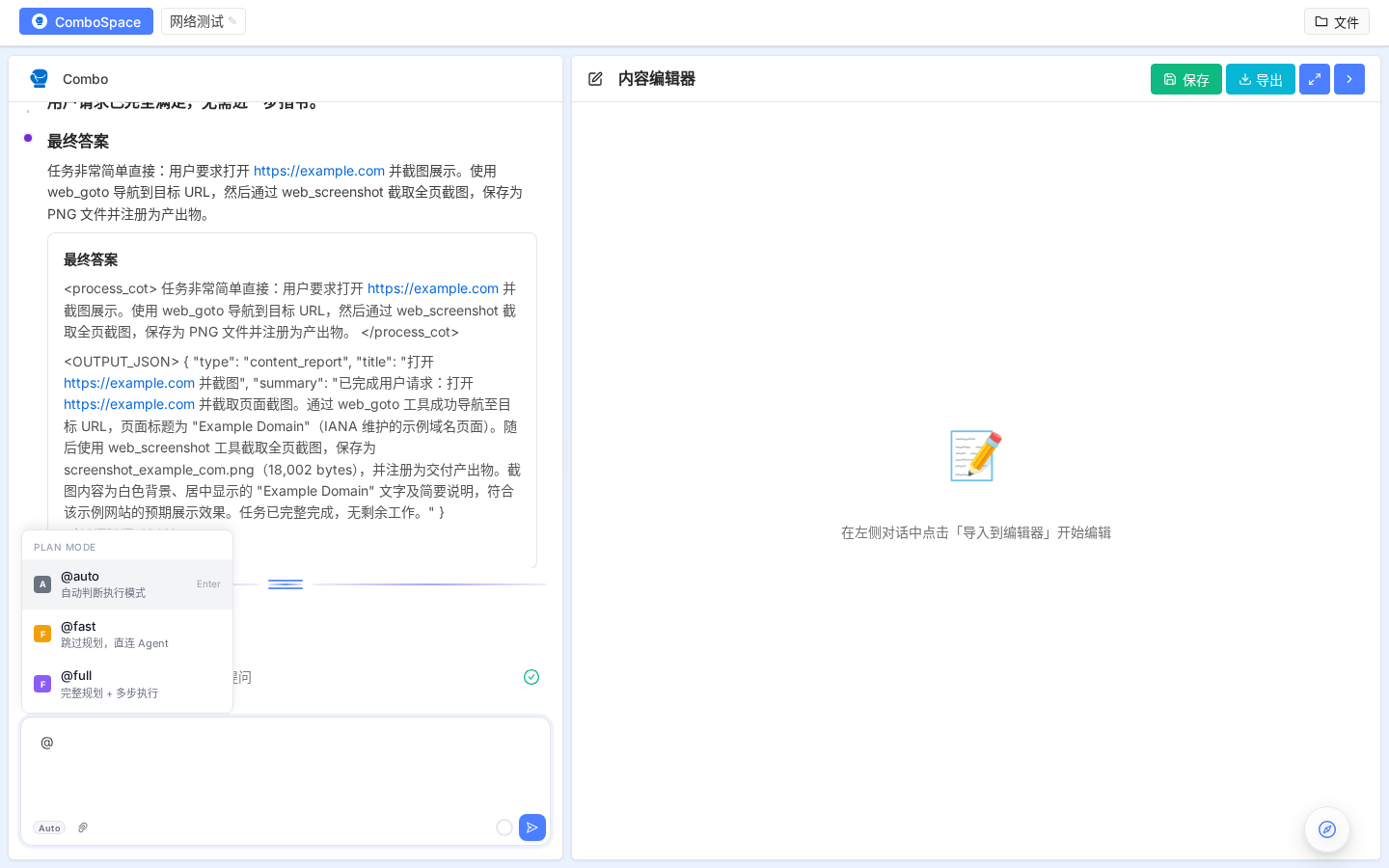
What the Full-mode “task ledger” looks like
In Full mode the Agent first prints a task ledger:
- Facts — verified facts, clarifications needed, derivations, grounded speculation
- Plan — steps, skills, expected outputs
Example: Full mode — “open https://example.com and screenshot it”
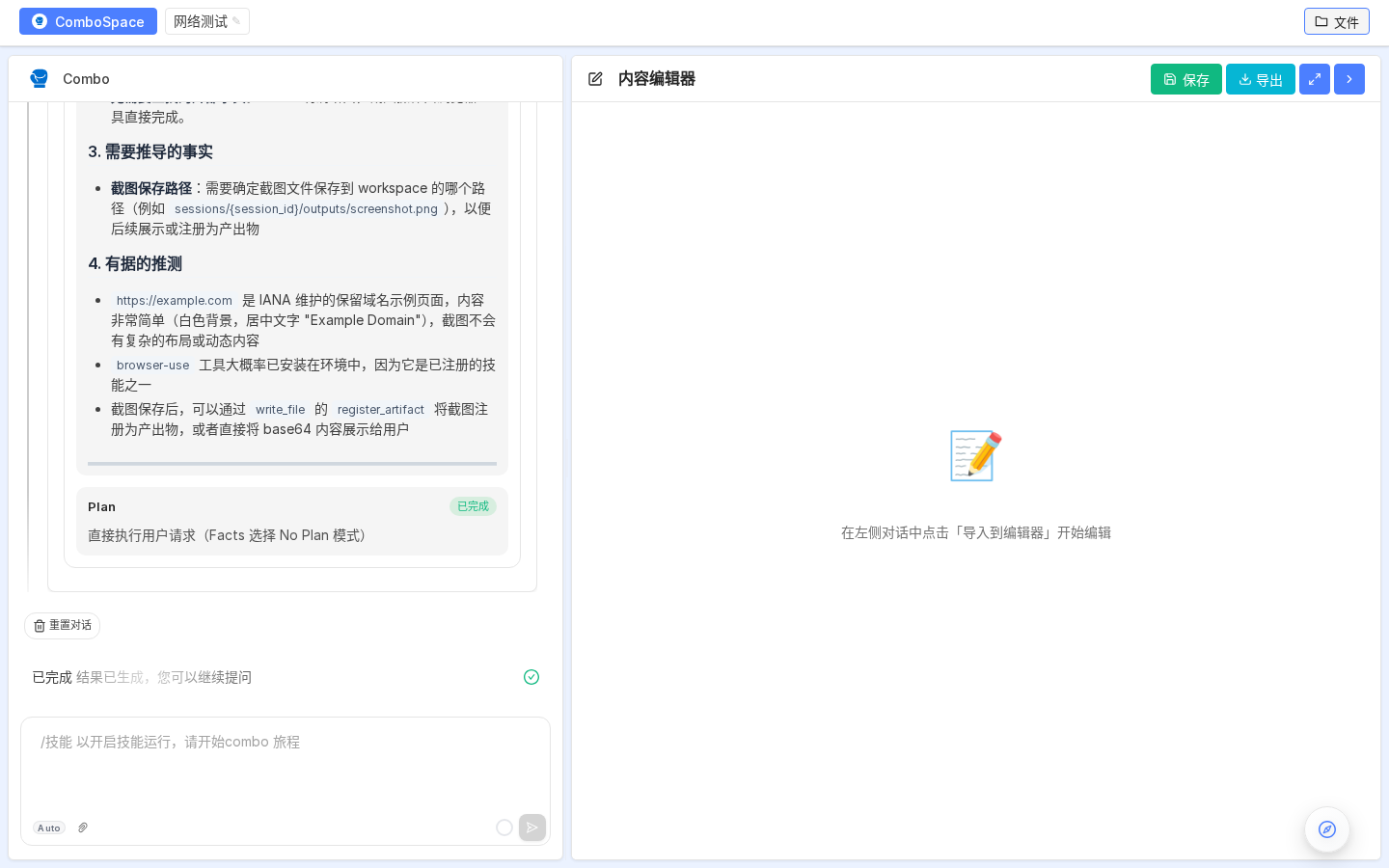
The ledger records target URL, intent, and available skills (browse, browser-use) so execution is transparent.
After completion: each step shows a checkmark and artifacts
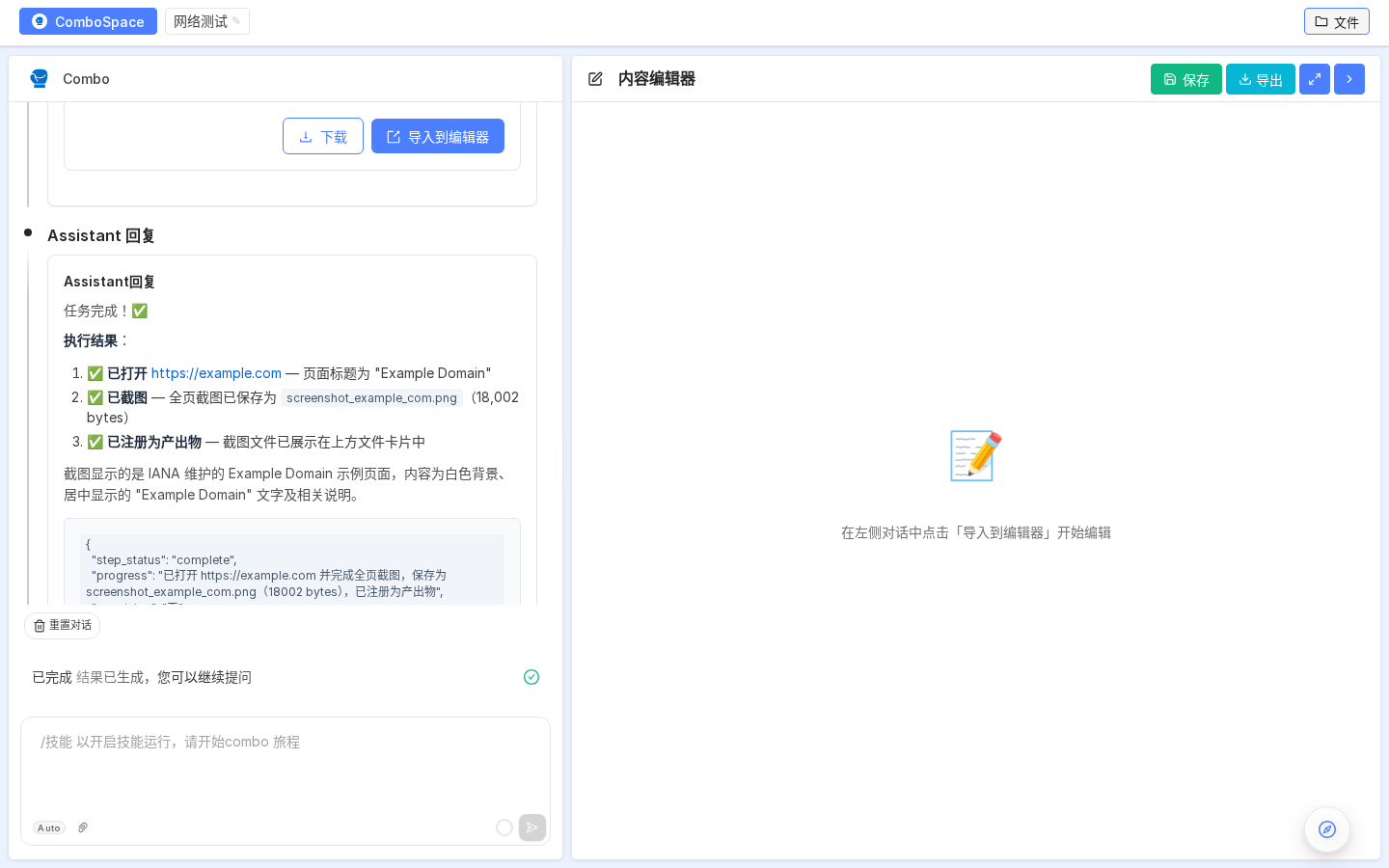
Full mode’s value: plan → execute → verify → register artifacts.
Badge color = the active mode. Switching persists per session. Different sessions may show different colors — expected.
2.2 Skill slash menu
Type / for your skill list — fuzzy search and keyboard nav.
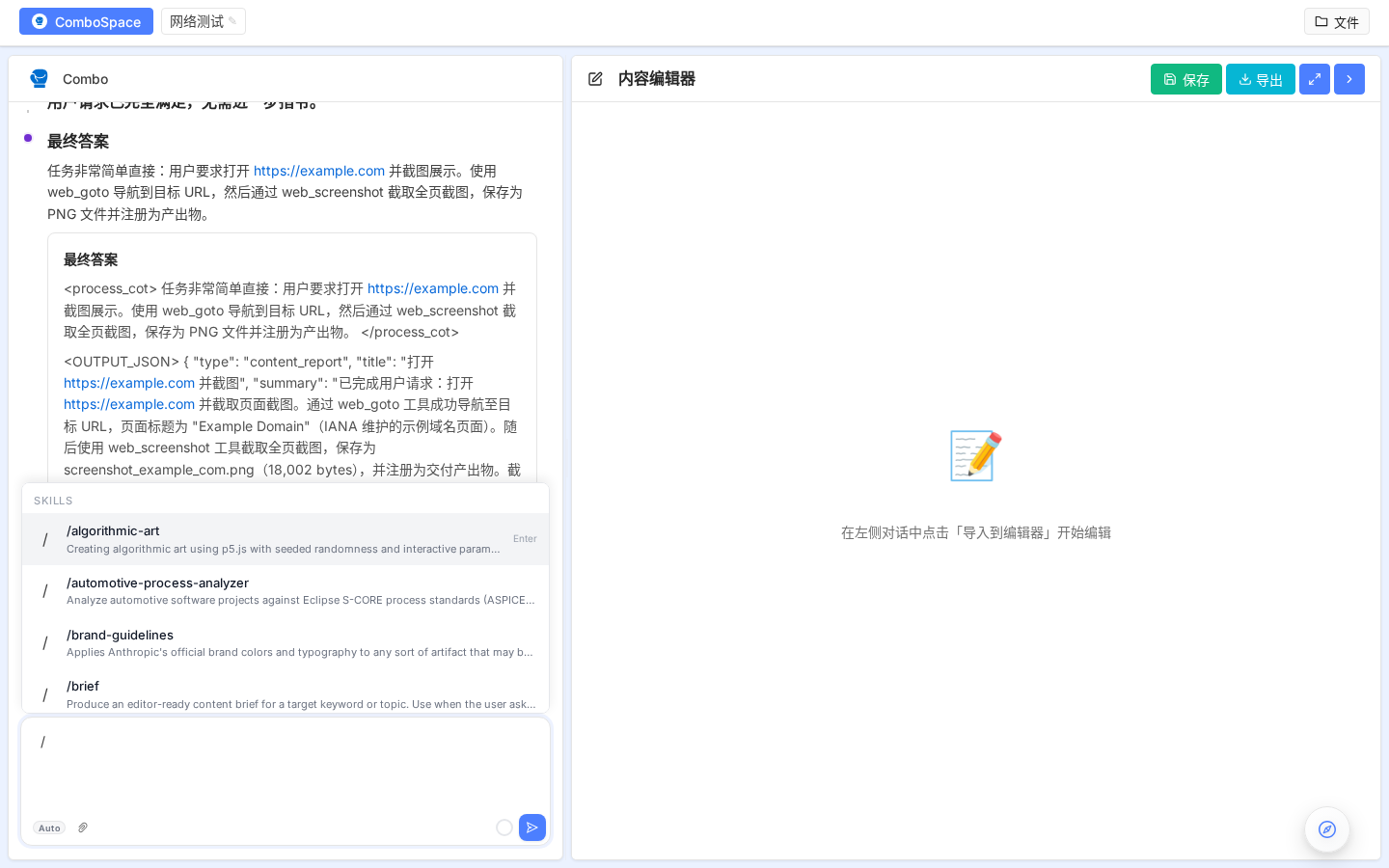
| Source | Badge | Meaning |
|---|---|---|
builtin | Platform | Preinstalled for all tenants (e.g. graft, docx, code-review) |
tenant | Team | Shared inside this tenant |
user | Personal | Your uploaded/installed skills |
Usage: / → filter (e.g. /graft) → Enter → skill name inserts with your message.
Skills come from GET /v1/skills?include_builtin=true. Reload the browser after installing — no restart needed.
2.3 Attachments
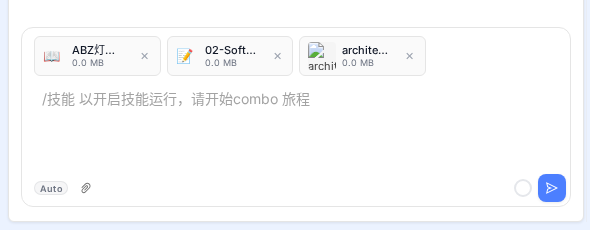
Paperclip (PaperClipOutlined) opens the file picker.
Formats:
Behavior:
- Files enter an upload queue with progress
- After upload, automatic parsing (chunking, OCR, embeddings, etc.)
- Parsed content attaches to this session’s ephemeral KB only; for reusable KBs use the KB page
- You can upload while typing; sends include attachments
2.4 Token usage ring
Small ring near send shows context fill for this session.
- Colors:
hsl(0~210°), cold blue → warm red - Hover: token percentage
- At the soft threshold (default
softThresholdTokens, tunable under Agent settings) the backend runs Compaction: summarize old turns, trim bulky tool returns. You’ll see “compacted N old messages”.
Red does not mean error. Compression keeps recent turns and summaries. Only persistent red across many rounds may warrant a session reset.
2.5 Send / stop
Running → red Stop; idle → paper plane Send.
| State | UI | Action |
|---|---|---|
| Idle | Plane | Send |
| Uploading | Spinner | Wait to send |
| Agent running | Red stop | Interrupt |
| Stopping | Spinner | Debounce ~1s |
Shortcuts:
| Key | Action |
|---|---|
Enter | Send |
Shift + Enter | New line (auto +10px height) |
| IME composing | Enter does not send |
Esc | Close @ or / menu |
3. Message stream
Newest messages at bottom. Typical card:
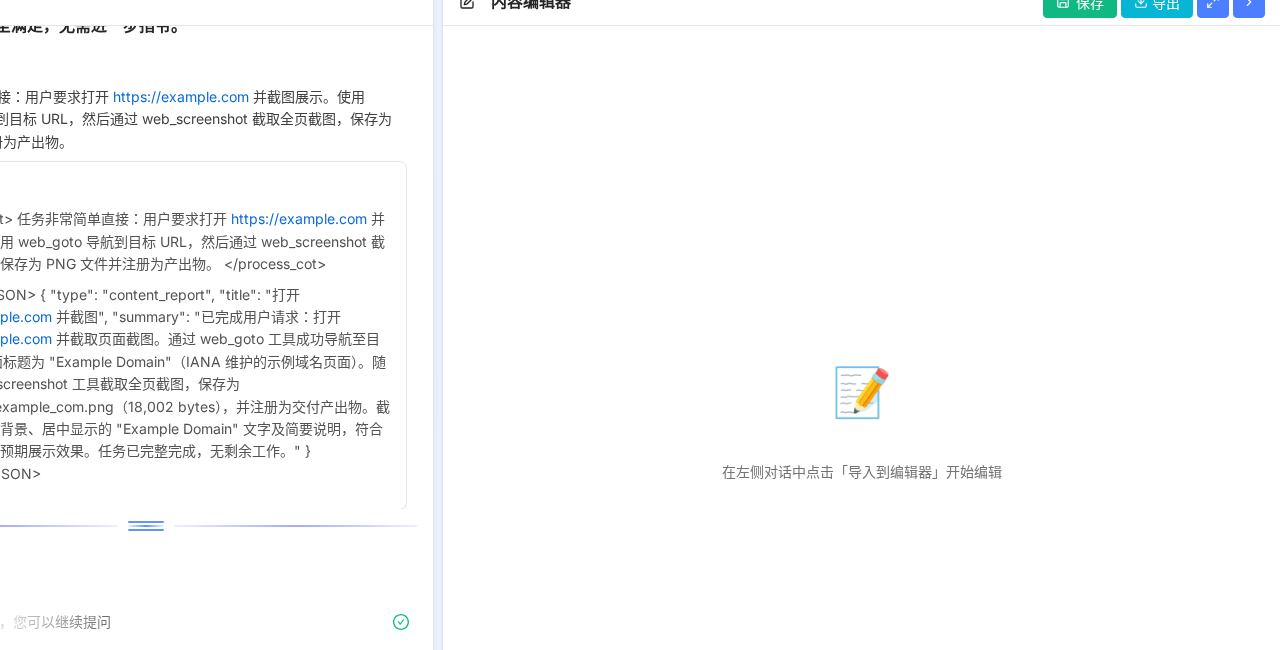
| Element | Meaning |
|---|---|
| Avatar | User / Agent / tool |
| Reasoning (collapsible) | Shown when thinkingDefault is medium/high |
| Tool card | Skill name, args, return summary |
| Final reply | Markdown; code; Mermaid; tables; citations |
| Message menu | Copy, regenerate, open in editor, delete |
Citations like [see §3.2] scroll the editor and briefly highlight.
4. Content editor
Right pane switches by artifact type:
| Type | Editor | Capabilities |
|---|---|---|
.docx | Lexical + Docx adapter | Selection AI, bookmarks, cross-refs, tracked changes |
.md | Markdown | Headings, tables, code, live Mermaid |
| Code | Monaco | Highlighting, completion, selection AI |
| Images | Image editor | Crop, annotate, export |
| Viewer | Read-only + copy selection |
Selection AI edit: select text → context menu “AI edit” → instruction → diff → accept/reject.

5. Top bar and sidebar

| Area | Entry | Notes |
|---|---|---|
| Tenant switch | Avatar → switch tenant | Cross-tenant (Collaboration) |
| Language | 🌐 | CN / EN / DE / JA / ZH-TW / PT / VI / ID / ES |
| Theme | Avatar menu | Light / dark / system |
| Profile | Avatar → settings | Other settings |
6. FAQ
Q: Where is Plan Mode?
A: Bottom-left of input, left of attachments. Default is Auto (gray).
Q: Does switching Plan Mode change past messages?
A: No — only future turns. Stop a running job before switching.
Q: Token ring is full?
A: Compaction runs at softThresholdTokens. If it stays high across dozens of rounds, new session or raise contextTokens in Agent settings.
Q: How long for attachment parsing?
A: Docx/Markdown often seconds; scanned PDF + OCR ~5–30s; large Excel/PPT longer. Gray until ready.
Q: / or @ doesn’t open a menu?
A: Command must follow start of line or whitespace.
7. Next steps
- Knowledge bases → Knowledge base
- Compression, pruning, memory → Agent settings
- Sharing → Collaboration & teams